

Saved searches are Marketplace queries you save so Facebook alerts you when a matching listing goes live. On mobile, you'll find them under Marketplace, then the "You" tab or Saved section labeled Alerts. On desktop, go to Marketplace, then Buying, then Your alerts. If notifications aren't showing up, check the saved search's own notification toggle first, then your phone's app permissions.
TL;DR:
- Facebook's saved searches for Marketplace alerts are often scattered across different labels and sections, with navigation varying between mobile and desktop versions.
- Properly setting filters, including specific keywords, geographic radius, and price range, significantly improves alert relevance and reduces notification noise.
- Mobile app notifications are reliable for real-time updates, while desktop saved searches require manual checking due to lack of instant push alert support.
- Issues with notification delivery usually stem from phone or app settings, battery optimization, or Facebook batching alerts in delays of 15 to 30 minutes.
- Speed-focused resellers benefit from tools like DealFlip AI, which provides real-time alerts, profit scoring, and scam detection to outperform Facebook’s batch notifications.
Table of Contents
- How to Find Your Saved Searches on Facebook Marketplace
- How Do You Save a Search and Turn On Alerts?
- How Do You Edit, Pause, or Delete a Saved Search?
- Why Aren't Your Saved-Search Notifications Showing Up?
- Best Practices for Getting More Out of Saved Searches
- How DealFlipAI Complements Native Saved Searches for Resellers
- My Workflow for Actually Using Saved Searches
- Get Faster Alerts and Deal Scoring With DealFlipAI
- Sources
- FAQ
How to Find Your Saved Searches on Facebook Marketplace
Facebook doesn't always use consistent labels for this feature, which trips people up more than it should. Sometimes it's called "Alerts." Sometimes it's "Saved searches." Sometimes it's buried under a bell icon with no text at all. The location depends on whether you're on the app or a browser, and Facebook updates the layout often enough that last year's screenshot might not match today's screen.
On the mobile app, here's the path:
- Open the Facebook app and tap Marketplace from the bottom menu.
- Tap your profile icon or the You tab (this replaced the old "Notifications" shortcut on many accounts).
- Look for Alerts or Saved — this is where your saved searches live, separate from anything you've saved by tapping the bookmark icon on a listing.
On desktop, the path is a little different:
- Go to facebook.com/marketplace.
- Click Buying in the left sidebar.
- Select Your alerts or Saved searches, depending on your account's current interface version.
The distinction that trips up the most people is saved searches versus saved items. A saved item is a specific listing you bookmarked because you liked it, similar to a wish list. A saved search is a standing query, like "iPhone 13 under $300 within 15 miles," that keeps running in the background and pings you when something new fits. Facebook's own help documentation draws this line clearly, but the app's navigation doesn't always make it obvious, so people searching for their saved listings often land on the wrong tab entirely.
If you're looking for something you bookmarked rather than a running alert, that's under Saved Items, not Saved Searches. If you're trying to get notified about future listings, Saved Searches (or Alerts) is the one you want. Desktop and mobile both store this data, but the mobile app is the only place that pushes real-time notifications. Desktop saved searches function more like a manual checklist you revisit when you remember to.
How Do You Save a Search and Turn On Alerts?
Setting up a saved search takes under a minute, but the quality of the alert depends entirely on how you set the filters. A sloppy search buried in irrelevant results is almost worse than no alert at all, because you'll start ignoring notifications altogether.
Here's the process, based on how HowToGeek documents the current Marketplace alert flow:
- Open Marketplace and run your search using specific keywords (for example, "PlayStation 5 disc" instead of just "PlayStation").
- Tap the bell icon or Notify Me button near the top of the results, or use the Save Search option if that's what your version of the app shows.
- Set your price minimum and maximum, plus your search radius in miles.
- Tap Create Alert or Save to confirm.
The filters matter more than most people assume. A radius that's too wide floods you with listings you'll never drive to pick up. A price range that's too loose means you get pinged for items priced way above resale value. Tighten both, and your notification list gets a lot more useful.
One trick worth using: save the same core search under a few different keyword phrasings. Sellers list the same item under wildly different names. Someone selling a "Cannondale road bike" might type "cannon dale," "road bicycle," or just "bike, barely used." Marketplace Monitor's alert guide recommends running several keyword variations for exactly this reason, since Facebook's matching leans on relevance ranking rather than strict keyword logic.

Pro Tip: Add a negative or exclusion word when your item name overlaps with something unrelated. Searching "iPhone case" without excluding "empty box" or "case only" will bury real deals under listings for accessories.
Keep in mind that push notifications for saved searches only work reliably through the mobile app. Desktop saved searches exist, but you'll need to check them manually since browsers don't get the same real-time push.
How Do You Edit, Pause, or Delete a Saved Search?
Cleaning up your saved searches keeps your notifications useful instead of overwhelming. Facebook gives you three basic controls: edit the filters, pause the alert temporarily, or delete it outright.
To edit a saved search, open your Saved searches or Alerts list, select the one you want to change, and tap Edit. From there you can adjust the price range, radius, or keywords without starting over. This matters more than it sounds, because rebuilding a search from scratch means losing whatever history or matching pattern Facebook has already built around it.
To pause a search without deleting it, use the toggle switch next to the listing in your saved searches menu. Pausing keeps the search saved but stops new notifications until you flip it back on, which is useful if you're temporarily not in the market (say, you just bought the couch you were hunting for and don't want ten more couch alerts a day).
To delete a saved search permanently:
- Open the saved search list on mobile or the Your alerts page on desktop.
- Tap the three dots or the trash icon next to the search you want removed.
- Confirm the deletion when prompted.
A quick note here: some users report saved searches that won't delete no matter how many times they tap the trash icon, based on complaints in Facebook's own community groups. If deletion fails, try closing and reopening the app, or switch to desktop and delete it from there instead. It's a known glitch, not something you're doing wrong.
If you run more than a handful of searches, organize them with a naming convention. Something like "COUCH - under $200 - 10mi" tells you at a glance what each alert covers, instead of scrolling through six identical-looking entries wondering which one is which.
Why Aren't Your Saved-Search Notifications Showing Up?
Missing alerts are almost always a settings problem, not a Facebook outage. Before assuming the feature is broken, run through this checklist:
- Confirm the notification toggle on the specific saved search is switched on. Editing a search sometimes silently resets this.
- Check your phone's OS notification settings for the Facebook app itself. Android and iOS both let you mute app categories separately, and Marketplace alerts can get caught in that filter.
- Turn off Do Not Disturb or Focus mode, or add Facebook to your allowed-apps list within those settings.
- Check battery optimization settings on Android specifically. Aggressive battery savers kill background processes that would otherwise deliver the push.
Facebook also batches notifications rather than sending them the instant a listing goes live. Marketplace Monitor's analysis of alert behavior notes that notifications often arrive in delayed batches of 15 to 30 minutes rather than immediately, which explains why a "hot" deal is sometimes gone by the time your phone buzzes. Desktop compounds this because it never pushes notifications at all. It's built for manual checking, not alerting.
To verify your setup is actually working, HowToGeek recommends a simple test: have a friend post a listing that matches your saved search criteria, then time how long the notification takes to arrive. If nothing shows up after 30 minutes, the problem is on your end, not Facebook's servers. If it consistently takes that long, tighten your filters and consider running a couple of keyword variations to give yourself more chances to catch the listing manually before the alert even fires.
Best Practices for Getting More Out of Saved Searches
A saved search only earns its place on your phone if it's actually catching relevant listings without burying you in noise. Here's how to tune yours:
- Run 3 to 5 keyword variations for anything you're actively hunting, since sellers rarely list items the same way twice.
- Add exclusion terms for common false matches (searching "Xbox" without excluding "case" or "controller only" will flood you with accessories).
- Set a tighter radius and narrower price band for high-demand items, and loosen both for items you're casually browsing.
- Prioritize your most valuable searches and check those first each day, rather than scrolling through everything in the order Facebook shows it.
Don't let your saved-search list balloon past what you can realistically manage. Other marketplaces put hard caps on this for good reason. Copart limits saved searches to 20 per account, and while Facebook doesn't publish an official ceiling, users who stack up 20 or 30 overlapping searches tend to report the app slowing down and alerts becoming harder to track.
Pro Tip: Build two or three message templates in your Notes app for common responses ("Is this still available? I can pick up today") so you're not typing from scratch when a good listing pops up. Speed wins more deals than perfect wording.
How DealFlipAI Complements Native Saved Searches for Resellers
Native saved searches work fine for casual browsing, but they weren't built for speed. If you're flipping items for profit, a notification delay that can range from several minutes to up to half an hour can mean someone else already messaged the seller and locked up the deal.
Dealflip AI scans Marketplace listings and scores them for profit potential, price versus resale value, and risk factors, so you're not guessing whether a listing is actually worth chasing. A few specifics worth knowing:
- Deal alerts flag fresh listings faster than Facebook's batched push notifications.
- Listing scores break down profit potential and risk instead of gut feeling.
- Scam detection flags suspicious sellers or pricing before you waste time messaging them.
- Suggested first-offer guidance takes the guesswork out of negotiating, based on market data.
For heat-sensitive categories like sneakers, electronics, or anything with a fast resale window, this kind of layered alert system fills the gap that native Marketplace notifications leave open.
My Workflow for Actually Using Saved Searches
I check high-priority alerts first every morning, respond to anything promising within minutes, and archive searches that haven't produced a hit in two weeks. Native alerts are fine for a casual buy, like hunting for a used dresser. But once you're competing against other flippers on speed and pricing, batching delays start costing real money, and that's when a faster monitoring layer earns its keep.
Get Faster Alerts and Deal Scoring With DealFlipAI
Dealflip AI is the alternative to waiting on Facebook's batched notifications. Instead of a 15 to 30 minute delay and a guess about whether a listing is actually a deal, you get a real-time alert paired with a profit score, a risk read, and a suggested opening offer, all before another buyer even sees the post.
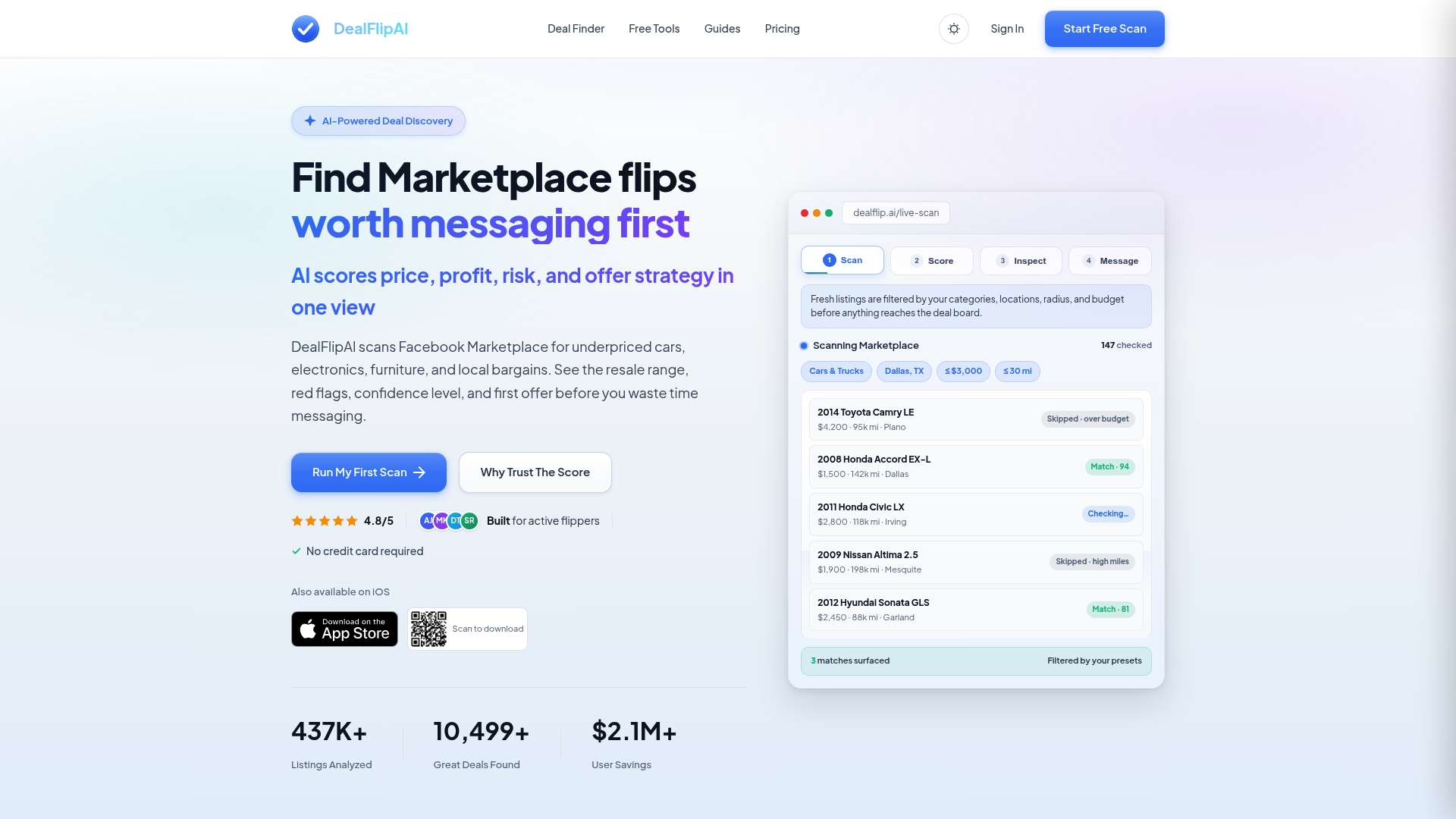
If you're a casual buyer, native saved searches will probably do the job. But if you're flipping items for profit and competing against other resellers watching the same categories, speed and accurate valuation are what separate a good month from a mediocre one. Dealflip AI's Facebook Marketplace Deal Finder is built specifically for that kind of speed, and the Deal Alerts feature pushes notifications the moment a listing matches your criteria, not whenever Facebook's batching cycle gets around to it.
Try the free Listing Analyzer on your next potential flip to see how the scoring works before committing to a paid plan.
Sources
For official UI steps and additional detail beyond what's covered here, check these sources:
- See your saved items on Facebook Marketplace
- How to Set Up Facebook Marketplace Alerts (So You Never Miss a Deal)
- How to Set Up Facebook Marketplace Alerts (Step-by-Step Guide) in 2026 | Marketplace Monitor
FAQ
Where Can I Find My Saved Searches on Facebook Marketplace?
On mobile, go to Marketplace, then tap the tab or Saved section labeled Alerts. On desktop, go to Marketplace, then Buying, then Your alerts.
How Do I Get Rid of Saved Searches on Facebook Marketplace?
Open your saved searches list, tap the three dots or trash icon next to the one you want removed, and confirm the deletion. If it won't delete, try again from desktop or restart the app first, since some users report occasional glitches on deletion.
How Can I Find My Saved Items on Facebook Marketplace?
Saved items are separate from saved searches and represent listings you personally bookmarked. Facebook's own help page confirms these live under a distinct "Saved" section from your alert-based saved searches.
What Happened to the Search Bar on Facebook Marketplace?
Facebook periodically redesigns the Marketplace layout, sometimes relocating the search bar or nesting it under a magnifying glass icon instead of showing it as a visible text field. If it's missing, tap the icon at the top of the Marketplace screen, since it's typically hidden rather than removed entirely.
Can DealFlipAI Replace Native Saved Searches Entirely?
Dealflip AI works alongside native saved searches rather than replacing them, adding faster alerts, profit scoring, and scam detection for readers who need an edge beyond Facebook's built-in notification delays.